 Rink Cast
Rink Cast Manual
Everything Rink Cast does, in the order you'll actually use it — from building your first roster to sending the final recap. Covers both Android and iPhone — the steps are the same throughout, with a 📱 note wherever something actually differs.
1Getting started
There's no account and no login. Rink Cast doesn't ask you to sign up or sign in — install it, and you're using it.
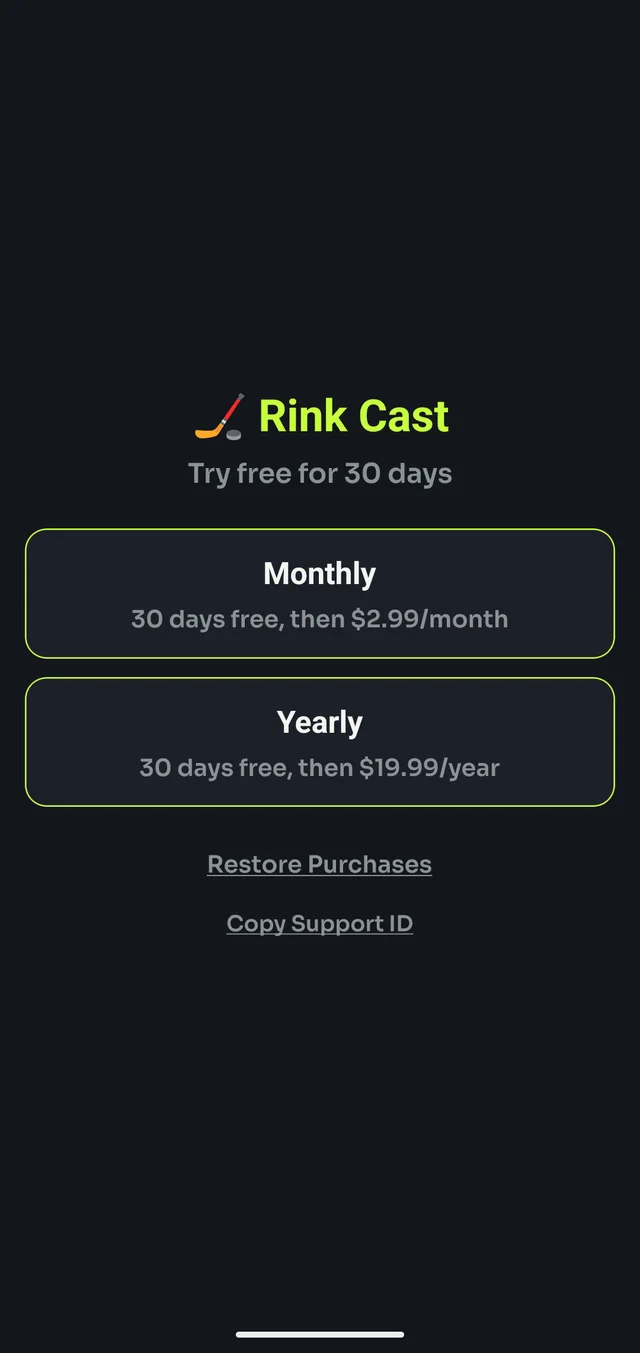
Every new install starts with a free 30-day trial. After that, it continues as a paid subscription — $2.99/month or $19.99/year — billed the same as any other subscription app: through the Google Play Store on Android, or the App Store on iPhone.
Restoring on a new phone: if you've subscribed before, tap Restore Purchases on the subscription screen to pick it back up on a new device, no new payment required.
🤖 On Android, cancelling happens through the Google Play Store, not inside Rink Cast — open the Play Store app, go to Subscriptions, and cancel from there.
📱 On iPhone, cancelling happens through Settings, not inside Rink Cast — open Settings, tap your name at the top, then Subscriptions, and cancel Rink Cast from there.
If you ever need help with your subscription, open Settings and tap your Support ID to copy it — that's how support identifies your subscription without needing your name or email.
2Creating teams and rosters
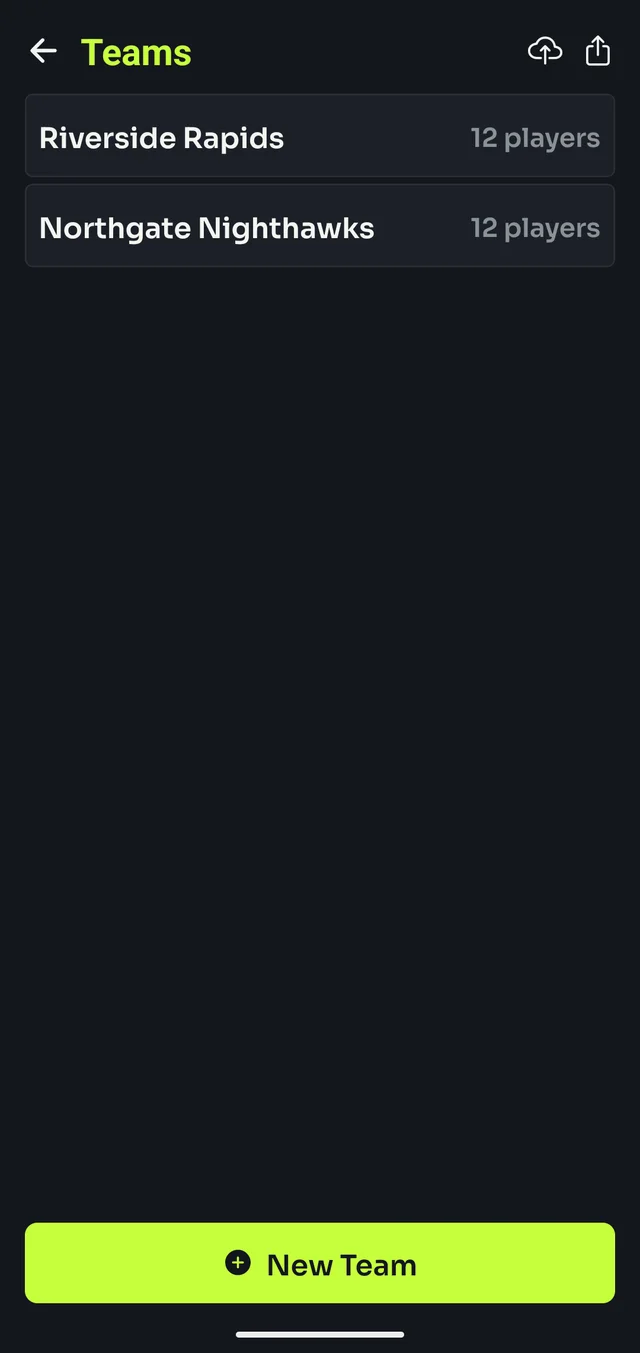
- From the Setup screen, tap Manage Teams.
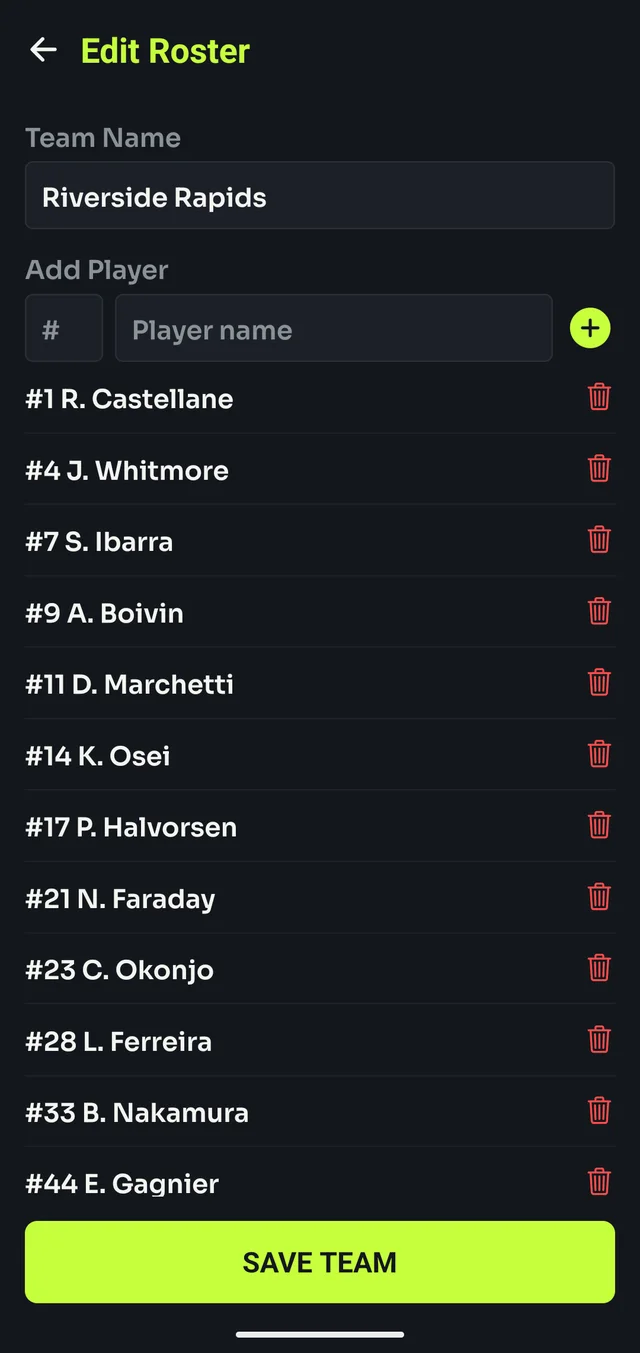
- Tap New Team, give it a name, then add players one at a time with a jersey number and name.
- Tap a team in the list any time to open its roster and add, edit or remove players.
Rosters are saved once and reused for every game — there's no need to re-enter players each time you play the same team.
A team with no players yet shows ⚠ no roster in the teams list instead of a player count, so it's easy to spot one you haven't finished setting up.
3Exporting, importing and backing up
Read this before you need it. Team rosters live only on your phone. Uninstalling Rink Cast, or clearing its data, deletes them for good — there's no account and no cloud copy to restore from.
Exporting is both your only backup and the only way to move rosters to a new phone.
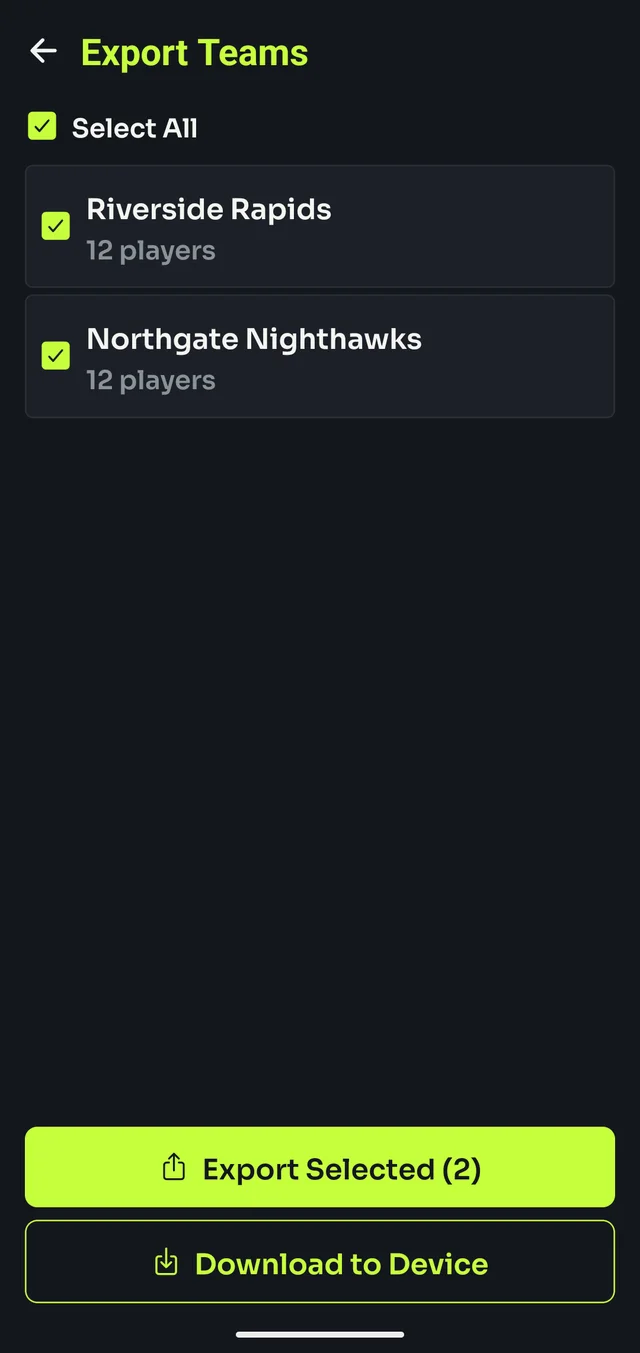
To export: in Manage Teams, tap the export icon, select the teams you want, then tap Export Selected to share the file, or Download to Device to save it directly.
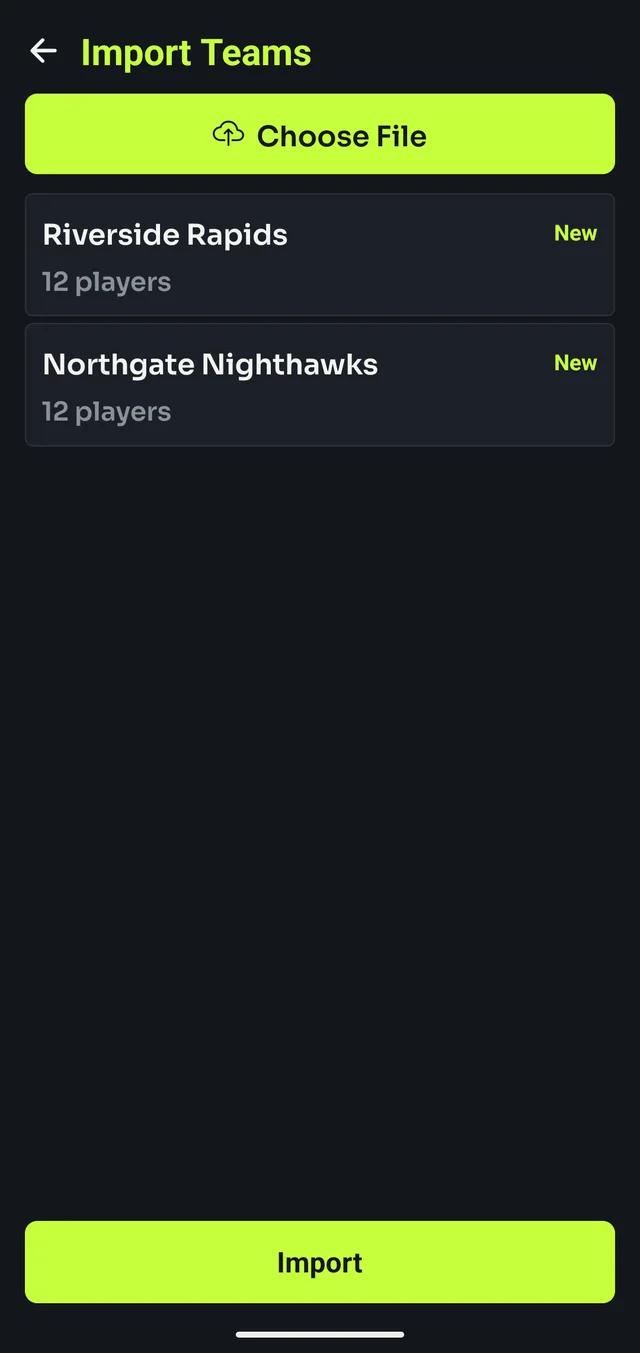
To import: tap the import icon, choose the exported file, and review the list before confirming.
If an imported team's name or ID matches one you already have, you'll be asked how to resolve it, per team:
- Skip — keep your existing team, ignore the imported one
- Overwrite — replace your existing team with the imported one
- Copy — keep both, adding the imported one under a new name
📱 On iPhone, both Export Selected and Download to Device hand off to the Files app rather than Android's Download folder — pick On My iPhone to keep the file local, or iCloud Drive to sync it. Importing works the same way in reverse: the import icon opens the same Files picker to choose a file from.
4Settings
Open Settings from the gear icon on the Setup screen.
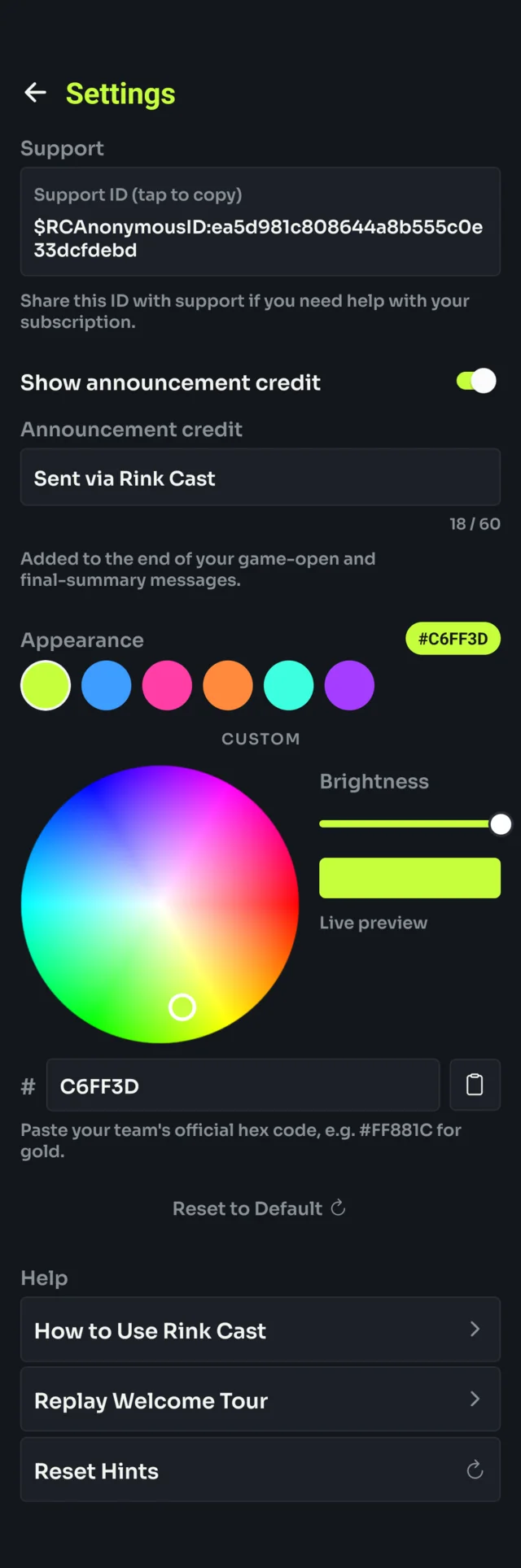
- Support ID — tap to copy it, for when you need help with your subscription.
- Show announcement credit — toggles a short line added to the end of your game-open and final-summary messages (off by default effect is no line at all).
- Announcement credit — the text itself, up to 60 characters. Defaults to "Sent via Rink Cast," but you can change or clear it.
- Appearance — pick the app's accent color: six presets, or a custom color wheel with a brightness slider and a hex field for pasting your team's official color. Applies instantly everywhere the accent shows up — buttons, toggles, score highlights. Text on accent-colored buttons switches between light and dark automatically so it always stays readable, however bright or dark the color you pick. Reset to Default puts it back to Rink Cast's lime.
- How to Use Rink Cast — a quick in-app reference, the same five steps as this manual's short form.
- Replay Welcome Tour — re-shows the four-slide tour from your first launch.
- Reset Hints — brings back the dismissed tips on the Teams and play-builder screens.
5Starting a game
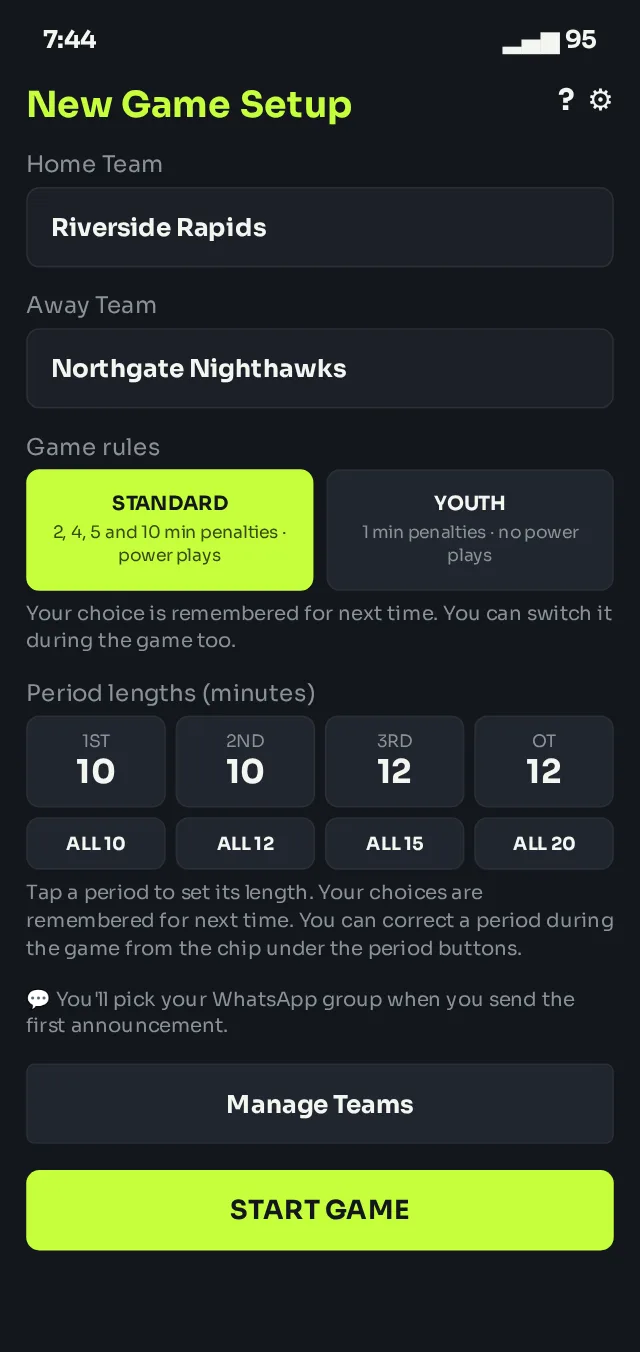
- On the Setup screen, pick a Home Team and Away Team.
- Choose the Game rules: STANDARD or YOUTH (see below).
- Set the Period lengths (see below).
- Tap START GAME.
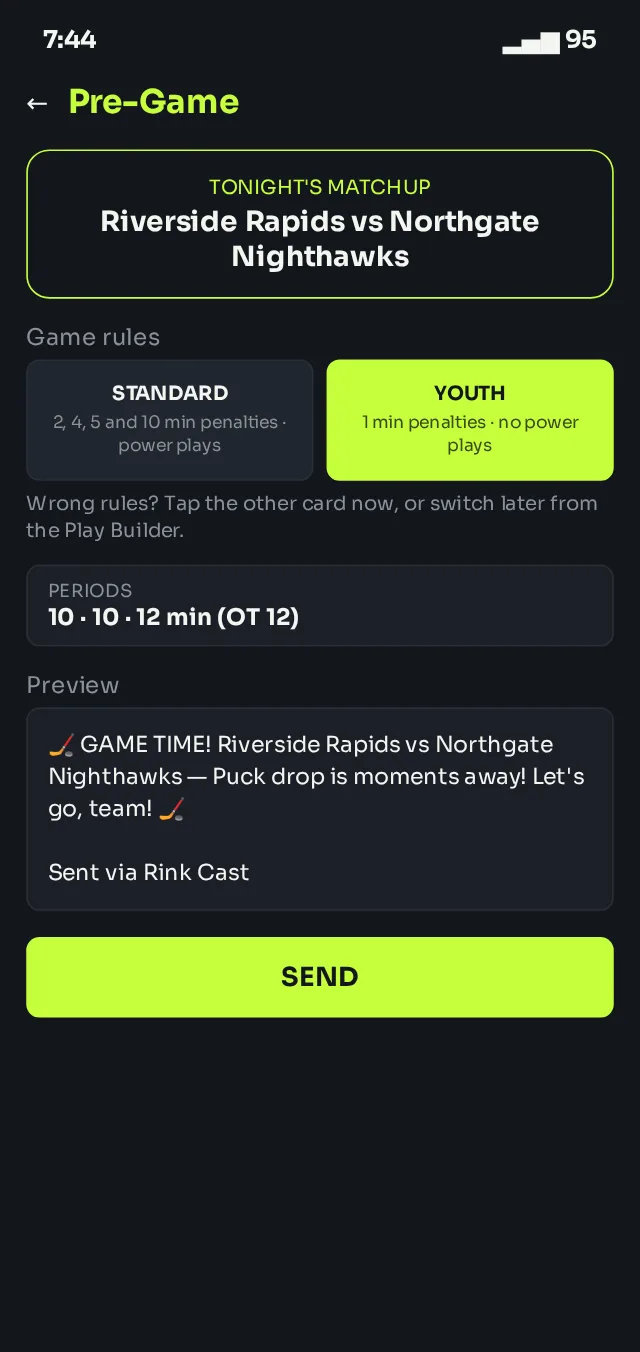
- Check the pre-game announcement preview, then tap SEND.
Sending that first announcement is what moves you into the live play builder — there's no separate "begin game" step.
Game rules. STANDARD has 2, 4, 5 and 10 minute penalties and tracks power plays. YOUTH is for leagues where every penalty is 1 minute and the team isn't short-handed: penalties are always 1 minute, and Rink Cast shows no strength ("5 on 4") or power-play tags. Rink Cast remembers your choice for next time, the Pre-Game screen shows it again (tap the other card to switch before you send), and you can change it during the game.
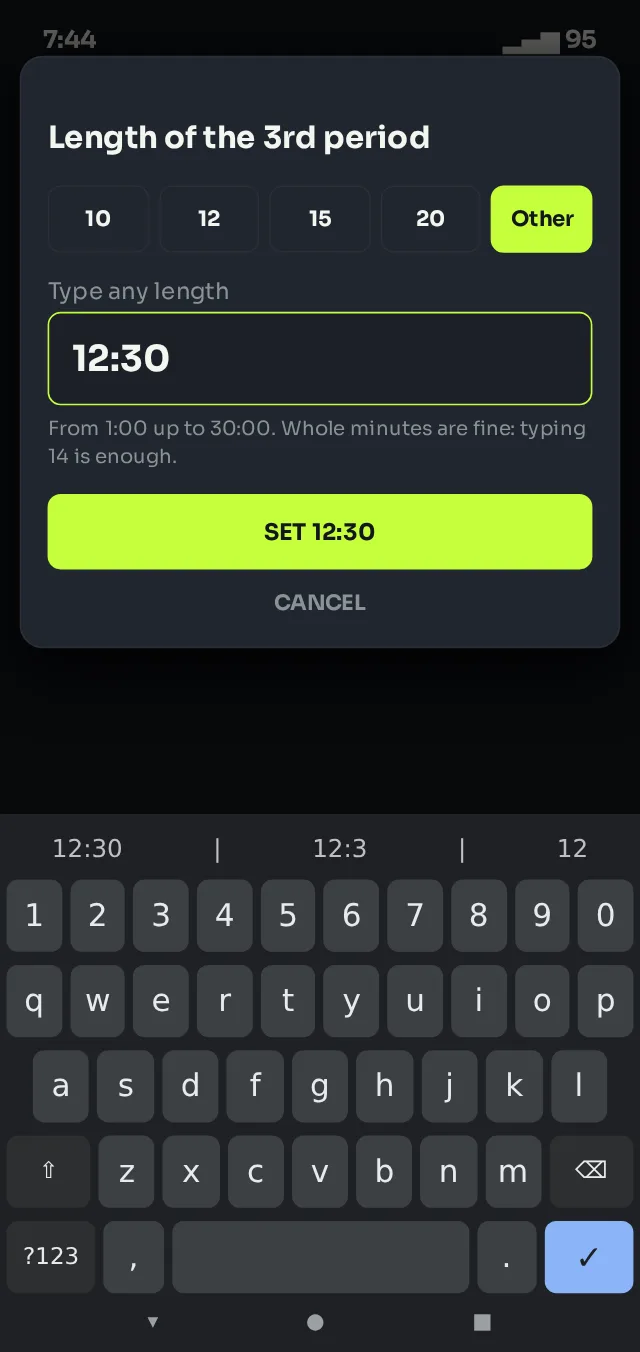
Period lengths. Youth leagues play different period lengths, and they can differ within a game. Set the 1st, 2nd, 3rd and overtime lengths here: tap a period, then tap 10, 12, 15 or 20, or tap Other and type any length from 1:00 to 30:00 (for example 14 or 12:30). ALL 10, ALL 12, ALL 15 and ALL 20 fill every period at once. Your choices are remembered for next time. Not sure? Leave it at 20 — you can correct a period at any time during the game.
6Where announcements get sent
Rink Cast doesn't have its own messaging — every announcement goes through your phone's normal share sheet, the same menu you'd use to share a photo. That means it works with WhatsApp, Messages, Telegram, Signal, email, or anything else installed, not WhatsApp specifically.
You choose the destination every time you send — nothing is remembered between messages. In practice, most people pick the same team group chat each time, but there's no setting that locks it in.
7During the game
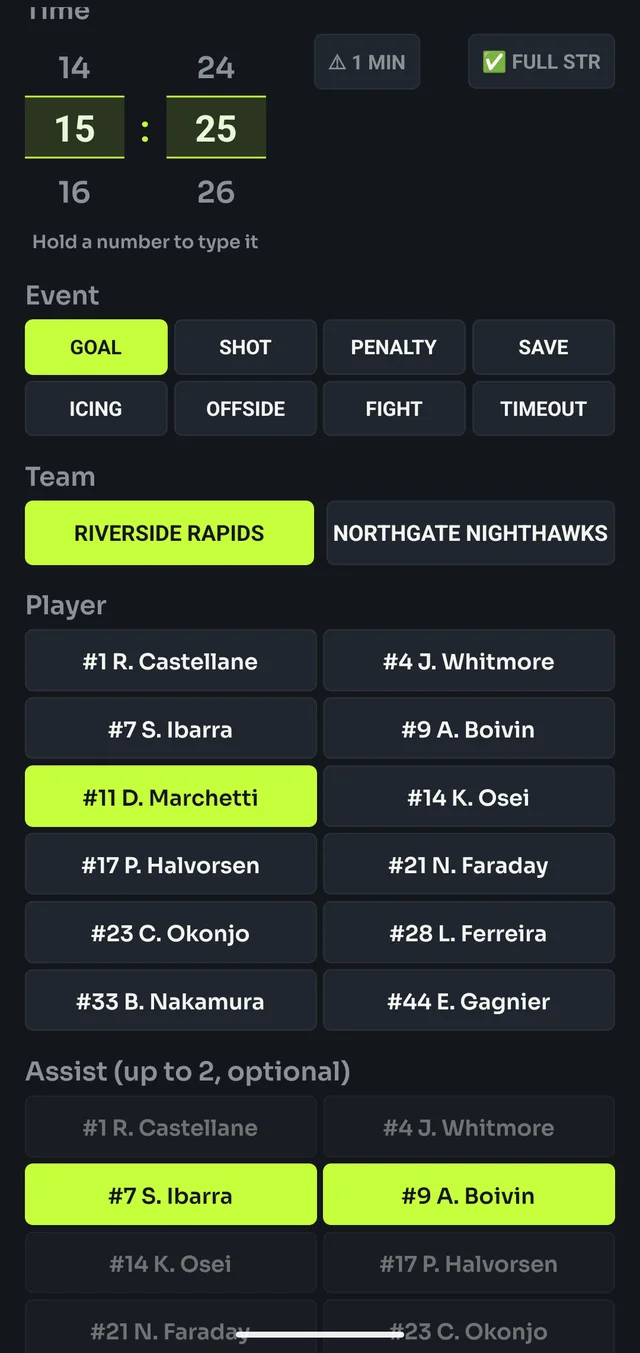
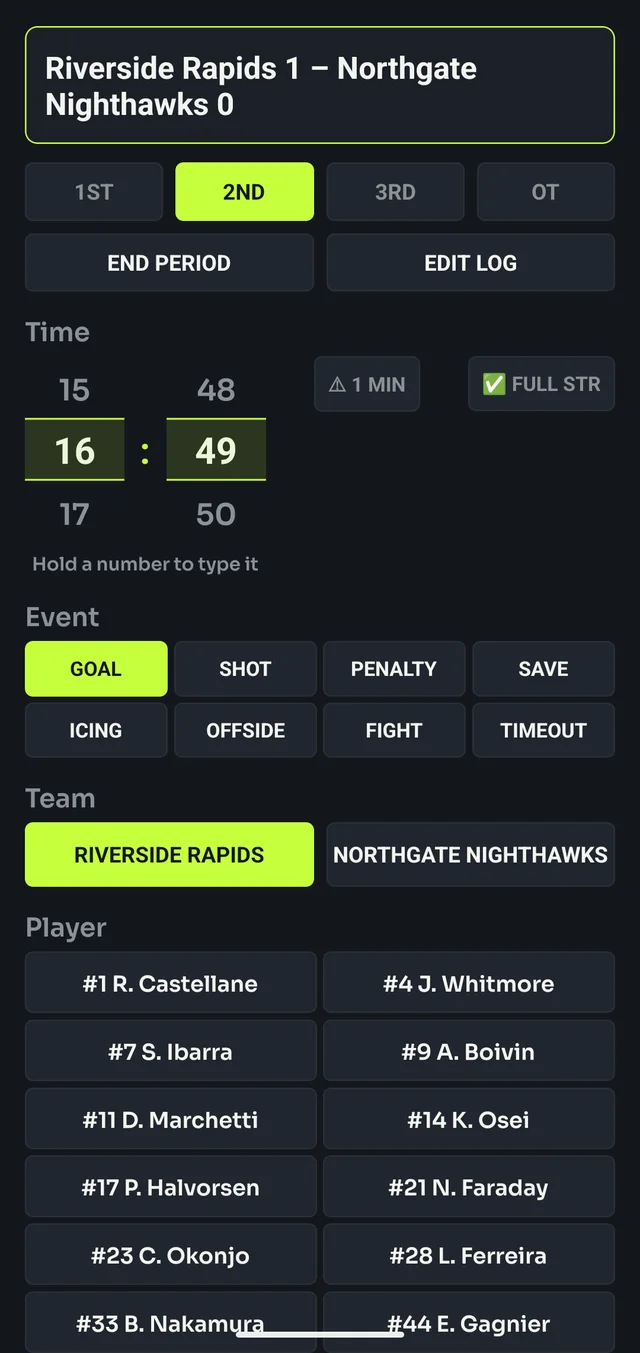
Every event follows the same pattern: tap the Event, fill in whatever it needs, check the Preview, then tap SEND.
Goals — tap GOAL, pick the scoring team, then the scorer. Assists are optional, up to two.
When a player scores their third goal of the game, Rink Cast adds 🎩 HAT TRICK! to the announcement automatically — there's nothing extra to tap. It also shows in the recaps and the game summary.
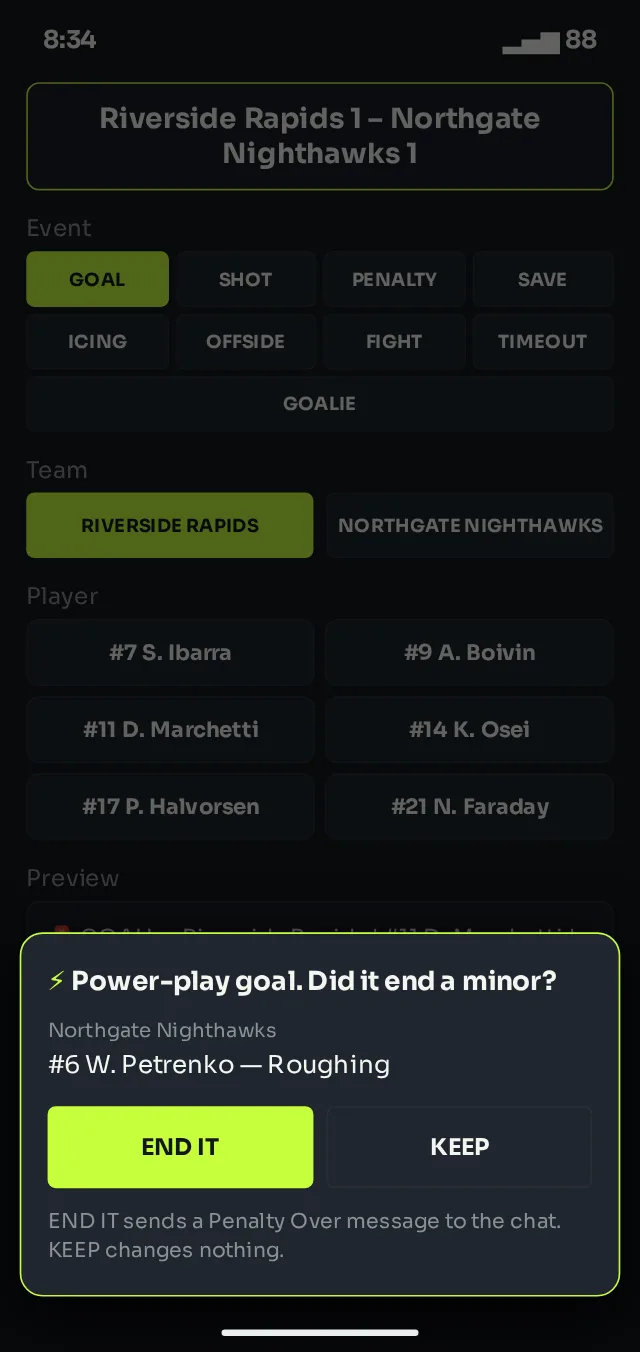
If the scoring team has an extra skater because of a penalty, the goal is tagged ⚡ POWER PLAY GOAL automatically. A goal by the team that is a skater down is tagged SHORT-HANDED GOAL. After you send a power-play goal, Rink Cast asks whether it ended a minor: tap END IT to take that penalty out of the box, and Rink Cast sends a ✅ PENALTY OVER message naming the player and saying the goal ended it, or tap KEEP to leave it. For a double minor it offers TAKE OFF 2 MIN, which shortens it and updates the box without sending anything. Majors and misconducts aren't ended by a goal. (In YOUTH rules there are no power-play tags and no prompt.)
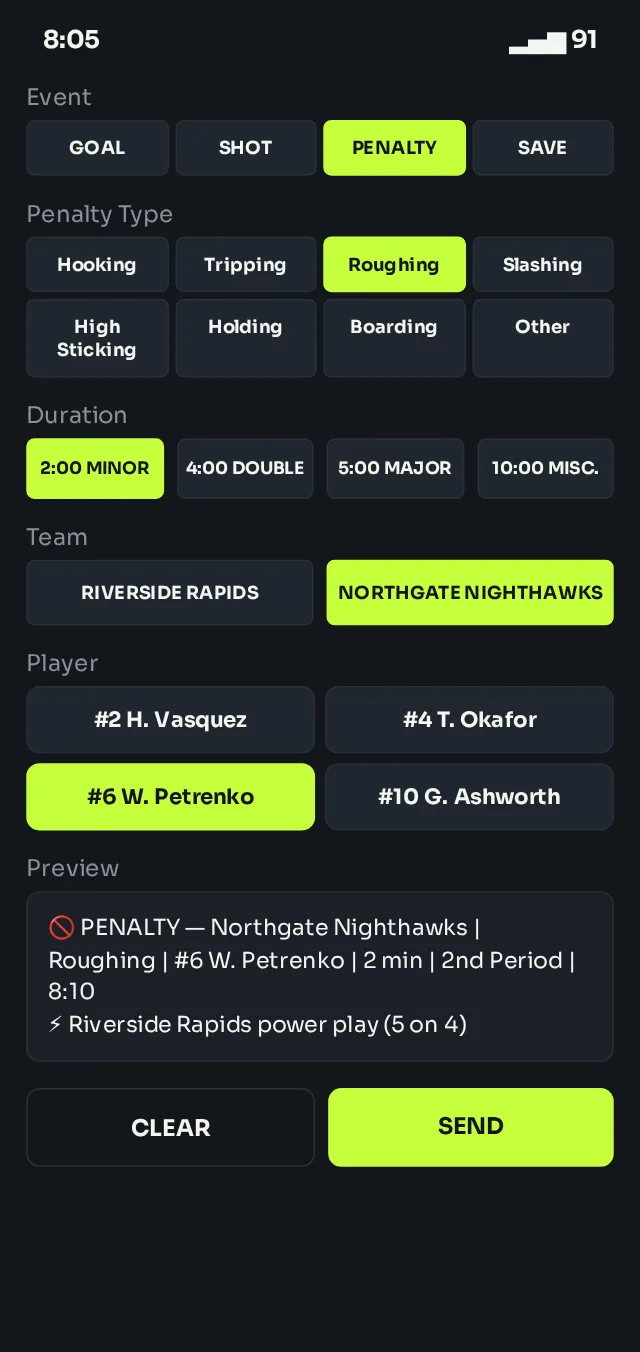
Penalties — tap PENALTY, then a type from the grid (Hooking, Tripping, Roughing, Too Many Players, and more), or tap Other to type one in. Pick how long it is: 2:00 MINOR, 4:00 DOUBLE, 5:00 MAJOR or 10:00 MISC. (a misconduct is logged but doesn't leave the team a skater down). In YOUTH rules the length is always 1 minute. Then pick the team and the player who took it, if known. The announcement says how long the penalty is and who is on the power play, for example ⚡ Riverside Rapids power play (5 on 4).
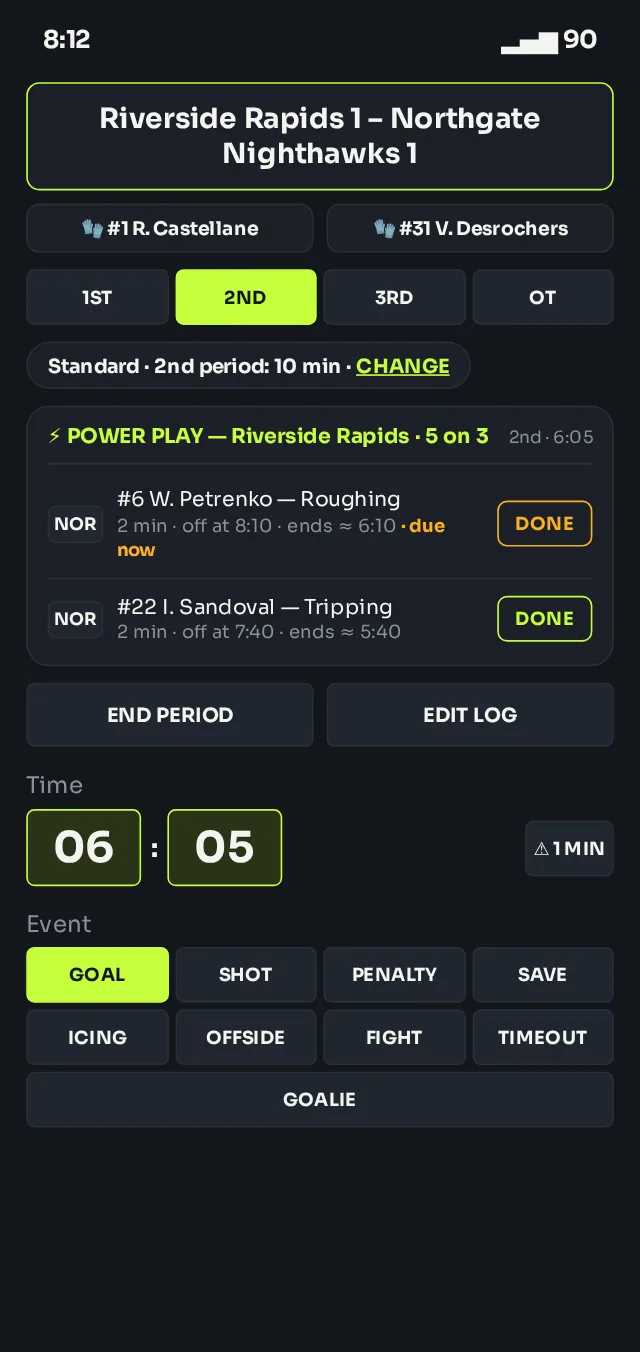
The penalty box — penalties that are still being served appear in a card under the period buttons. It shows who is serving, the strength (for example ⚡ POWER PLAY — Riverside Rapids · 5 on 3, or 4 on 4 when each team has one), and when each penalty is expected to end. Rink Cast has no running clock of its own, so it works that out from the clock you set; when your clock passes a penalty's expected end the row turns amber and says due now. Penalties carry over into the next period using that period's length.
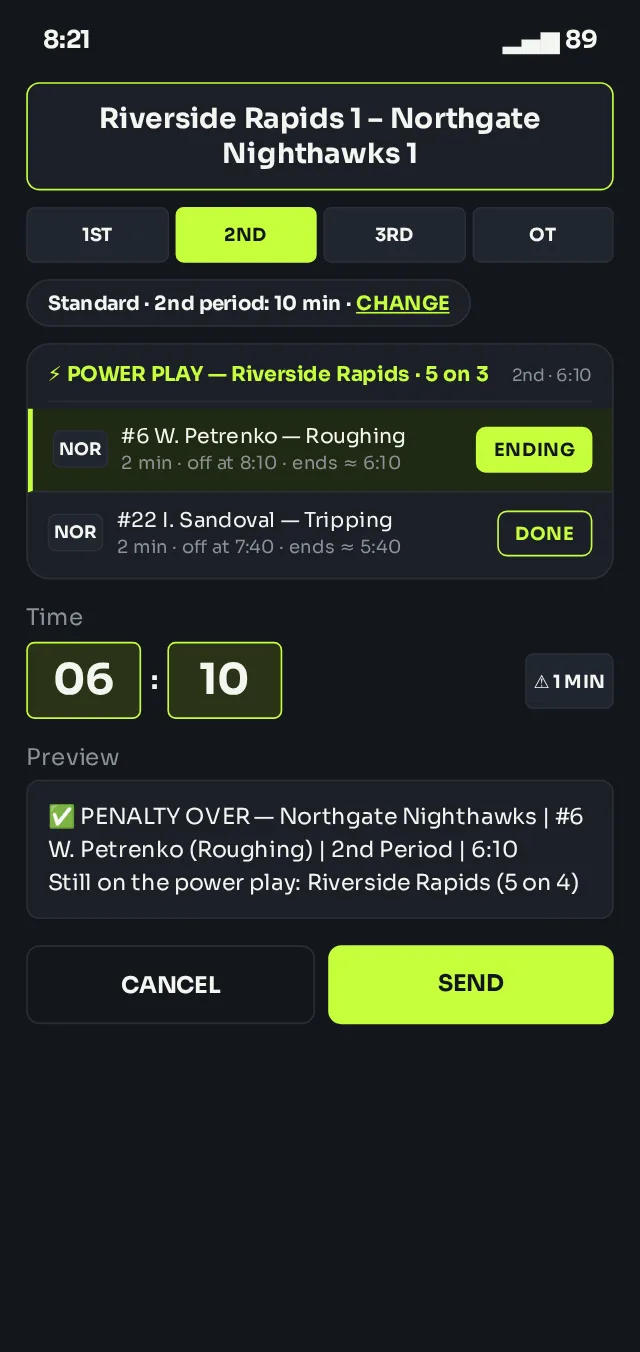
When a penalty is over, tap DONE on its row. The clock jumps to the time it was expected to end; adjust it if the real clock was stopped, check the preview, and tap SEND. The announcement names the player and says what the strength is now — for example ✅ PENALTY OVER — Northgate Nighthawks | #6 W. Petrenko (Roughing) | 2nd Period | 6:10 followed by Still on the power play: Riverside Rapids (5 on 4) or Back to full strength. You don't need a separate "full strength" message. A team never drops below 3 skaters.
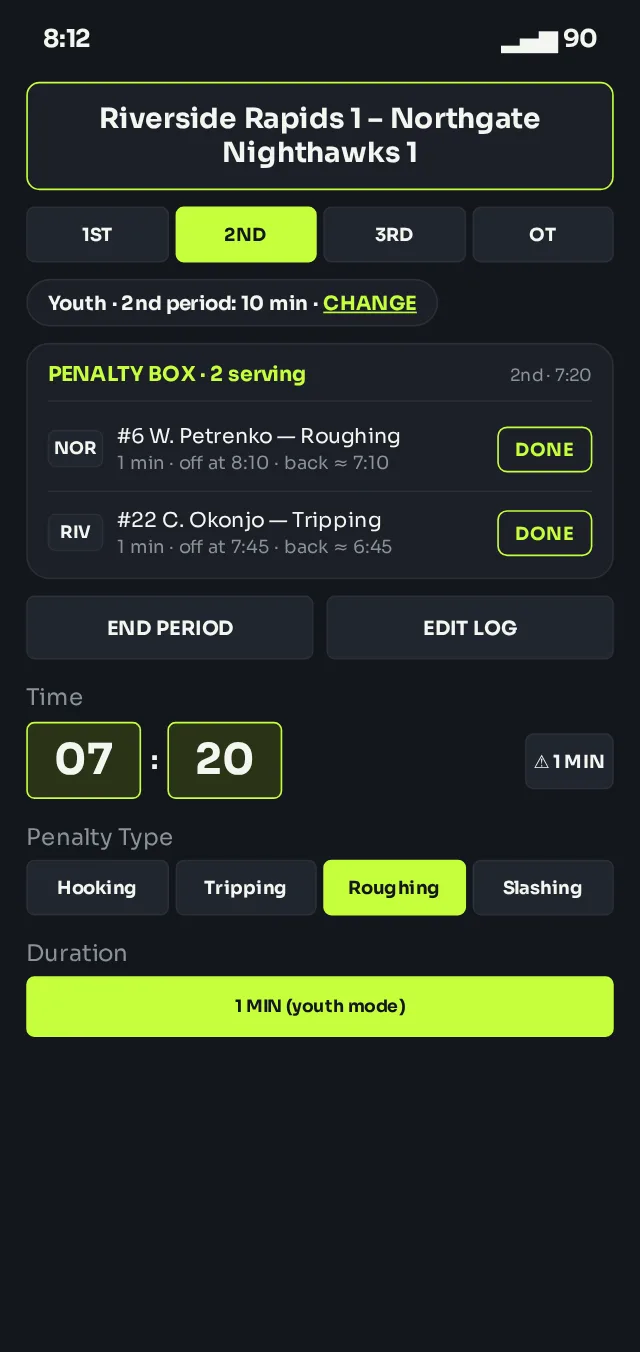
YOUTH rules keep the penalty box and DONE so you can see who is serving and announce when they're back, but there is no strength banner, no "5 on 4" wording and no power-play tags, and every penalty is 1 minute.
Everything else — Shot, Save, Icing, Offside, Fight and Timeout work the same way: tap the event, pick the team, send.
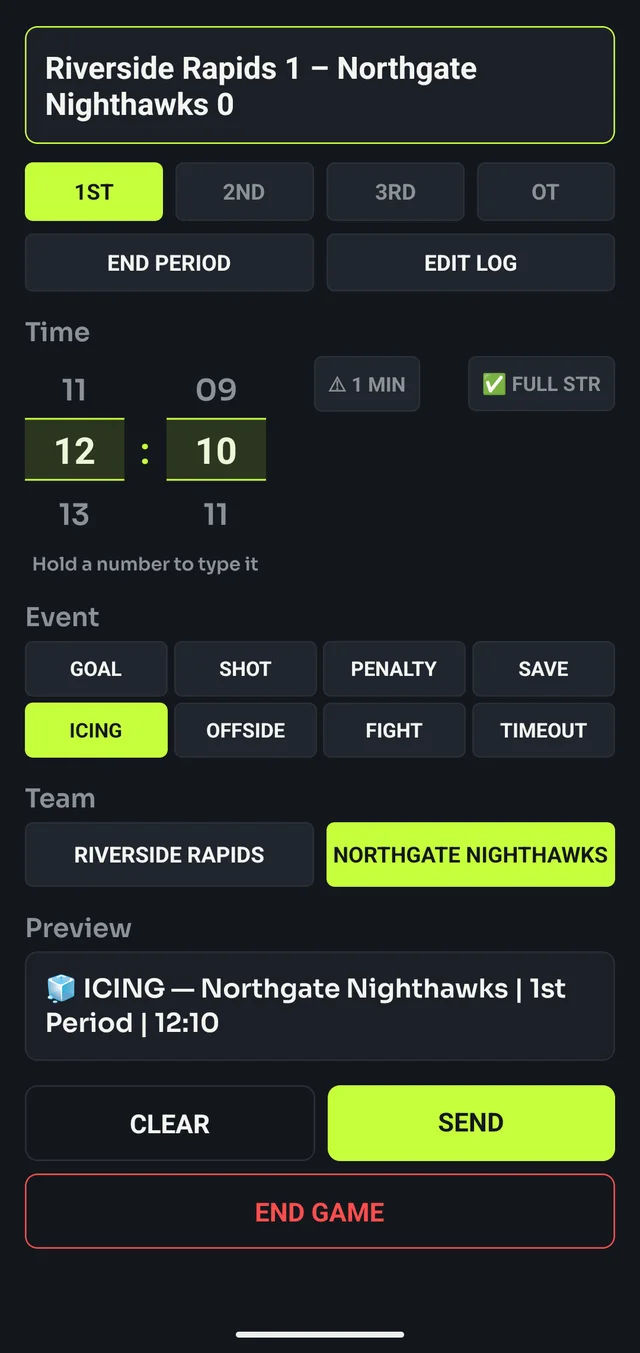
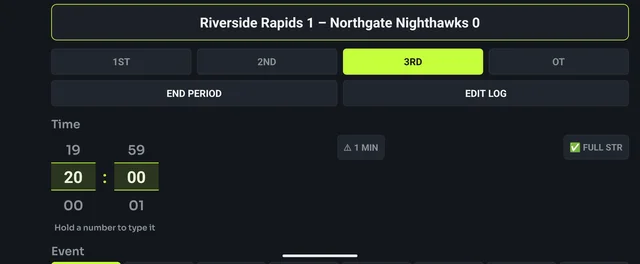
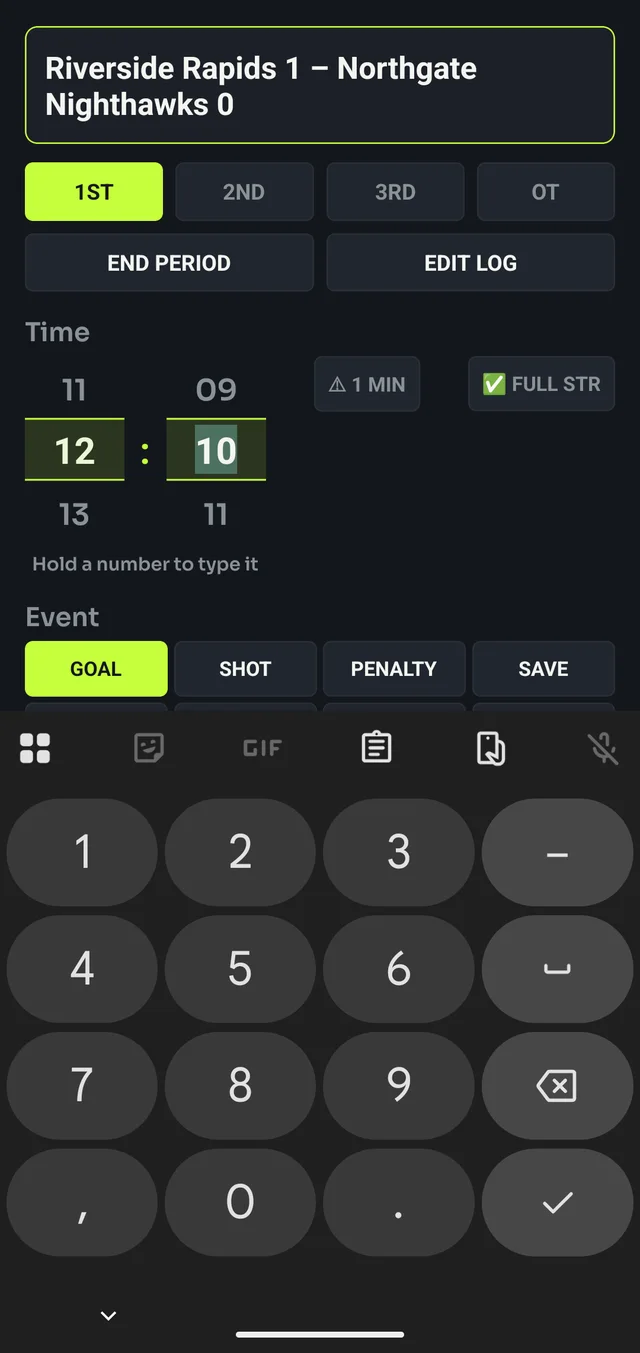
The clock — scroll each wheel to set minutes and seconds, or hold a number to type it directly. ⚠ 1 MIN sends a one-minute-left warning for the current period. The clock starts each period at that period's length, and the minutes wheel goes up to it.
The chip under the period buttons, for example Standard · 2nd period: 10 min · CHANGE, opens the Game rules sheet: switch between STANDARD and YOUTH, or correct the length of the current period (tap 10, 12, 15 or 20, or Other to type one), then tap SAVE. Penalties already in the penalty box keep the length they had, and nothing is sent to the chat.
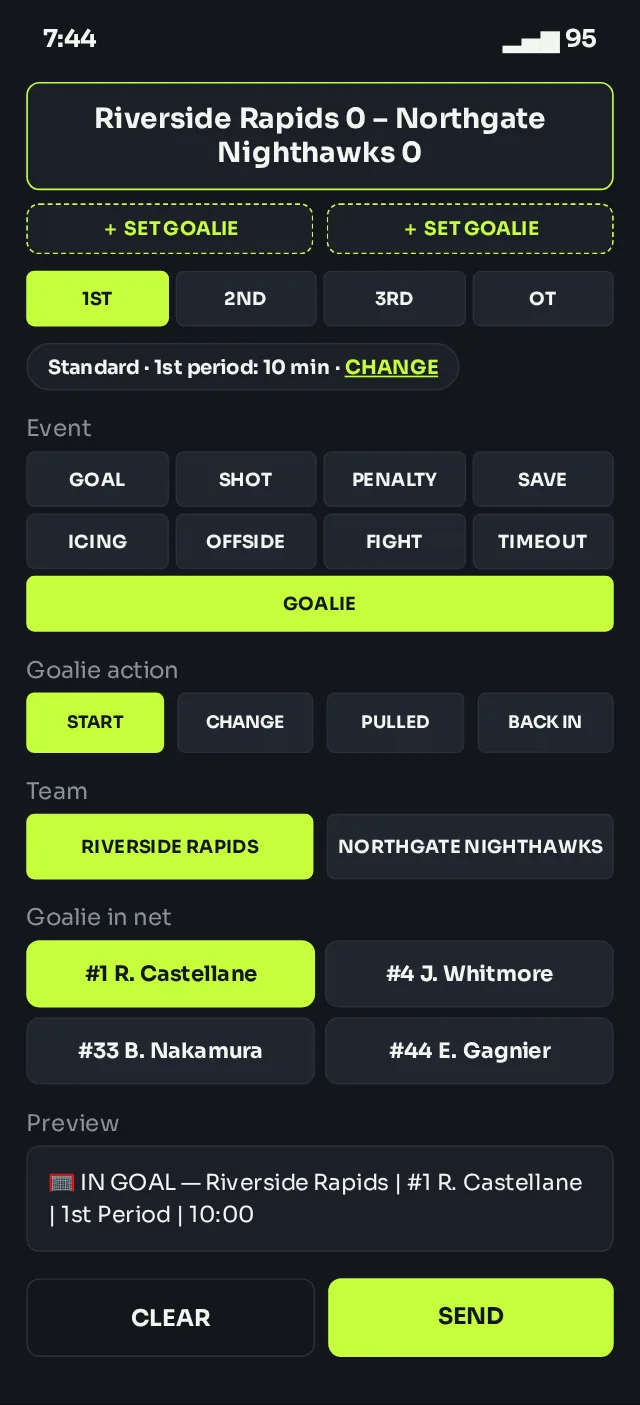
Goalies (optional) — tap GOALIE, then choose what happened:
- START — who is in net. Pick the team, then the goalie from its roster. This is also what the dashed + SET GOALIE chip under the score does: tap it and Rink Cast jumps straight to START for that team. Set the goalies whenever suits you, before or after the puck drops — the pre-game "Game Time" message isn't affected.
- CHANGE — a different goalie comes in. Pick who, and the message says who they replaced.
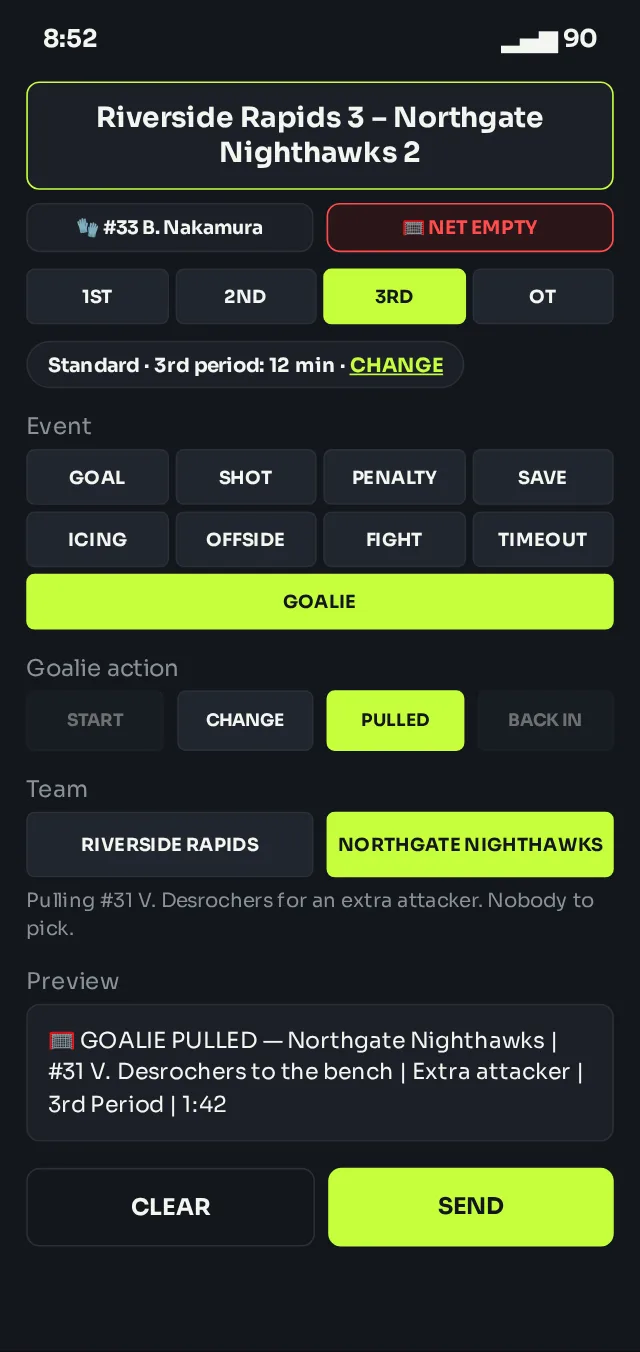
- PULLED — the goalie comes out for an extra attacker. There's nobody to pick; the team's chip turns red and reads NET EMPTY.
- BACK IN — the goalie returns to the net.
While a team's net is empty, any goal scored against it is tagged EMPTY NET automatically in the announcement and in the game summary.
A team with no roster still works for everything except START, since there's no one to pick from: CHANGE, PULLED and BACK IN send a message without a name, and empty-net goals are still tagged.
Periods — tap 1ST, 2ND, 3RD or OT to move to it, which sends a "start of period" announcement. END PERIOD sends a recap of that period's goals, penalties and goalie changes — including anyone still serving a penalty — before you move on. The clock starts each period at the length you set.
8Fixing mistakes
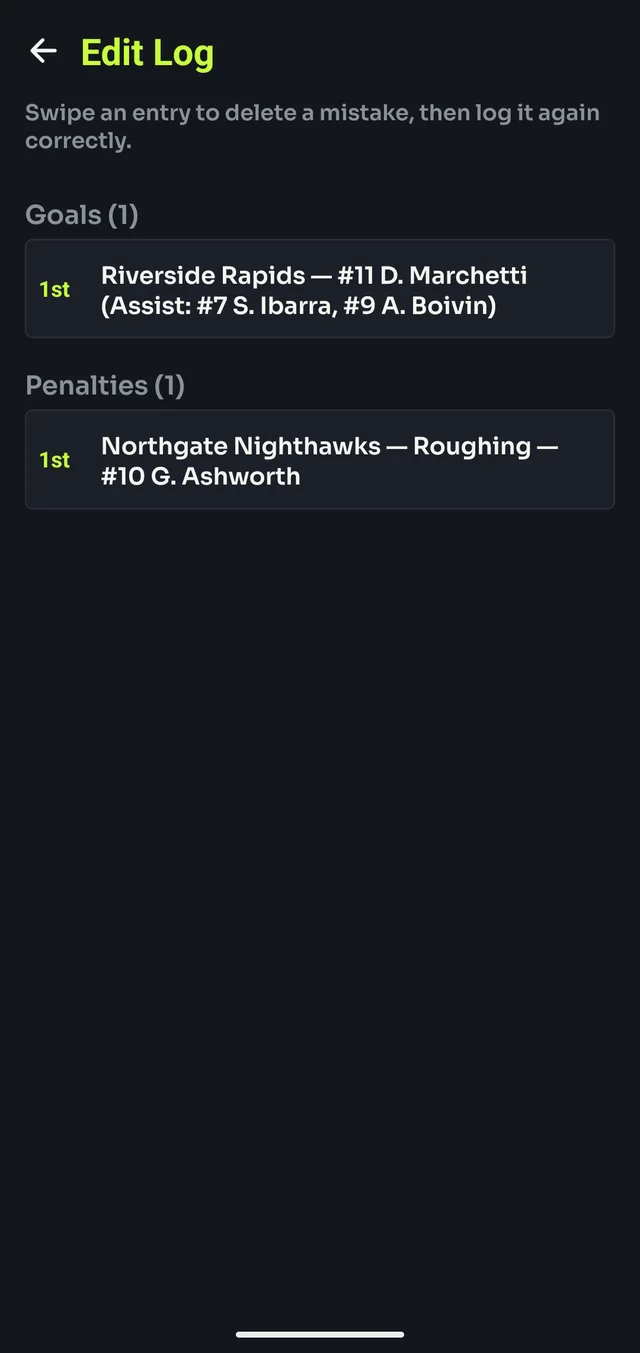
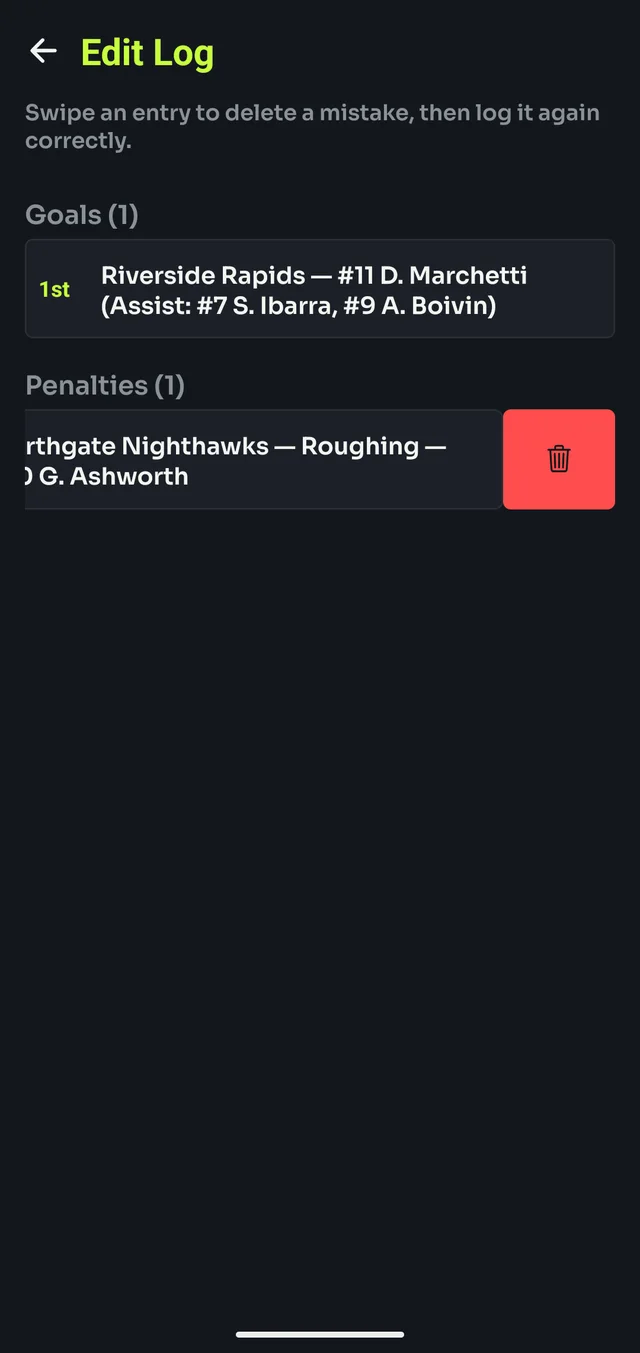
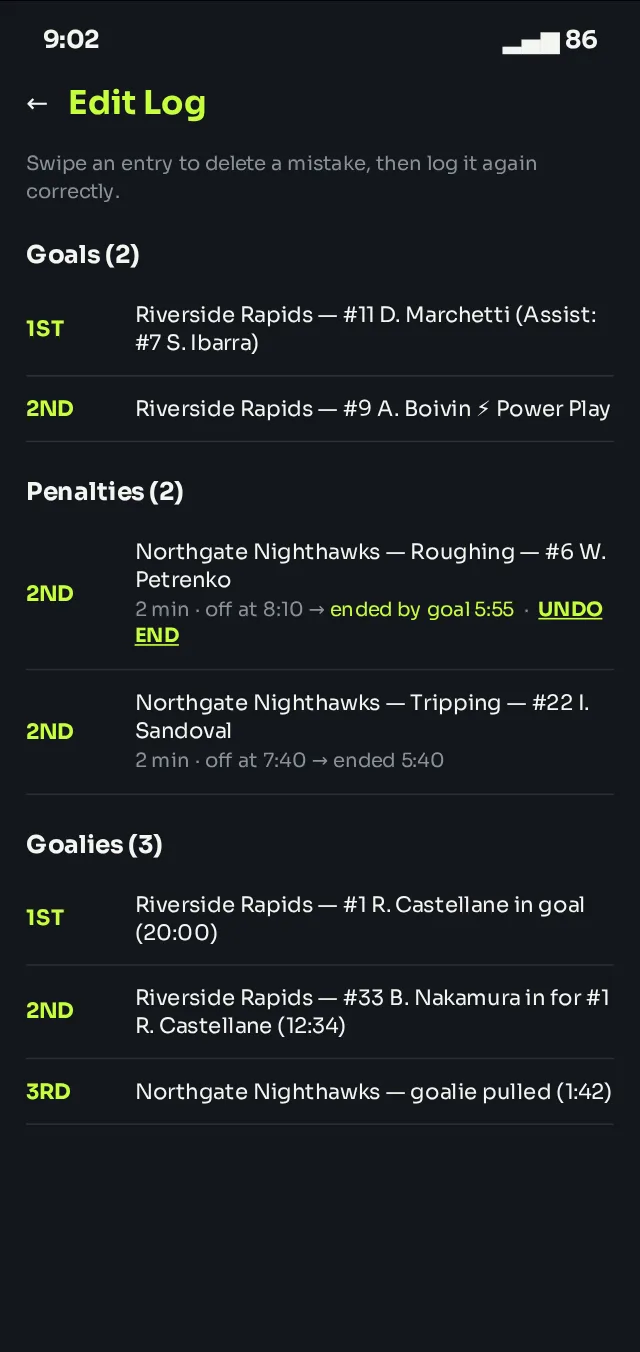
Tap EDIT LOG above the clock to see every goal, penalty and goalie change logged so far. Swipe an entry left to reveal a delete button — removing it updates the score and final summary to match, as if it never happened. Each penalty also shows its length and when it ended (or that it's still serving); tap UNDO END to put a penalty back in the penalty box if you ended it by mistake. Deleting a goalie change also rewinds the goalie chips under the score to match. (Goals you've already logged keep their EMPTY NET tag even if you later delete the pull.)
There's no "undo send," though: deleting an entry only fixes the game record inside Rink Cast, not a message that's already gone out. If you sent something wrong, a quick correction message in the chat is still the fastest fix for anyone already reading along.
9Finishing the game
- Tap END GAME on the play builder.
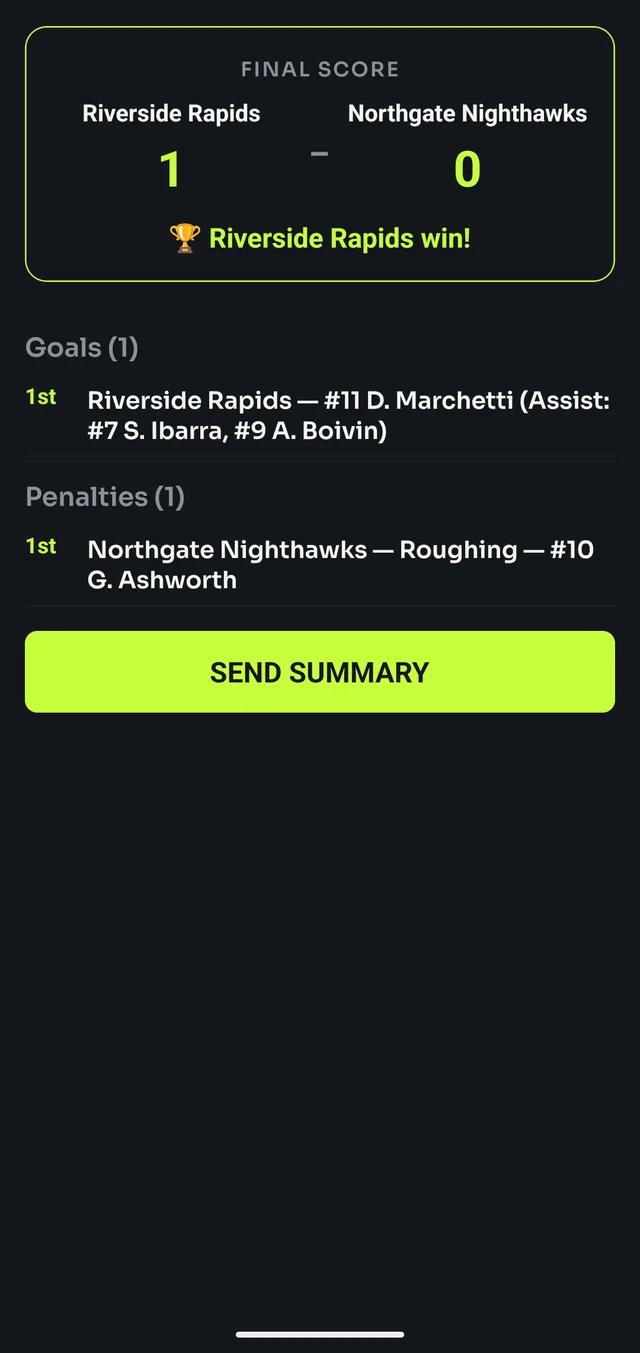
- Review the final score and the full list of goals (with power play, hat trick and empty net notes), penalties with their lengths, and goalie changes.
- Tap SEND SUMMARY to share the recap.
Sending the summary also resets Rink Cast back to the Setup screen, ready for the next game.
10Example feed
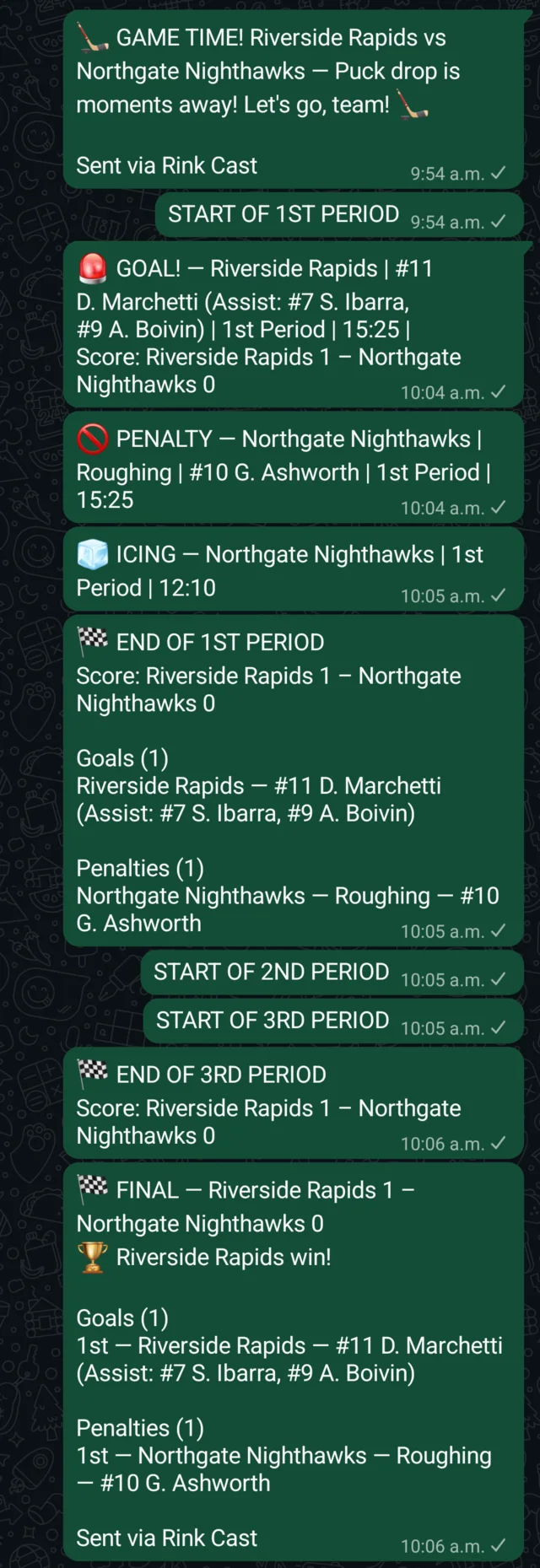
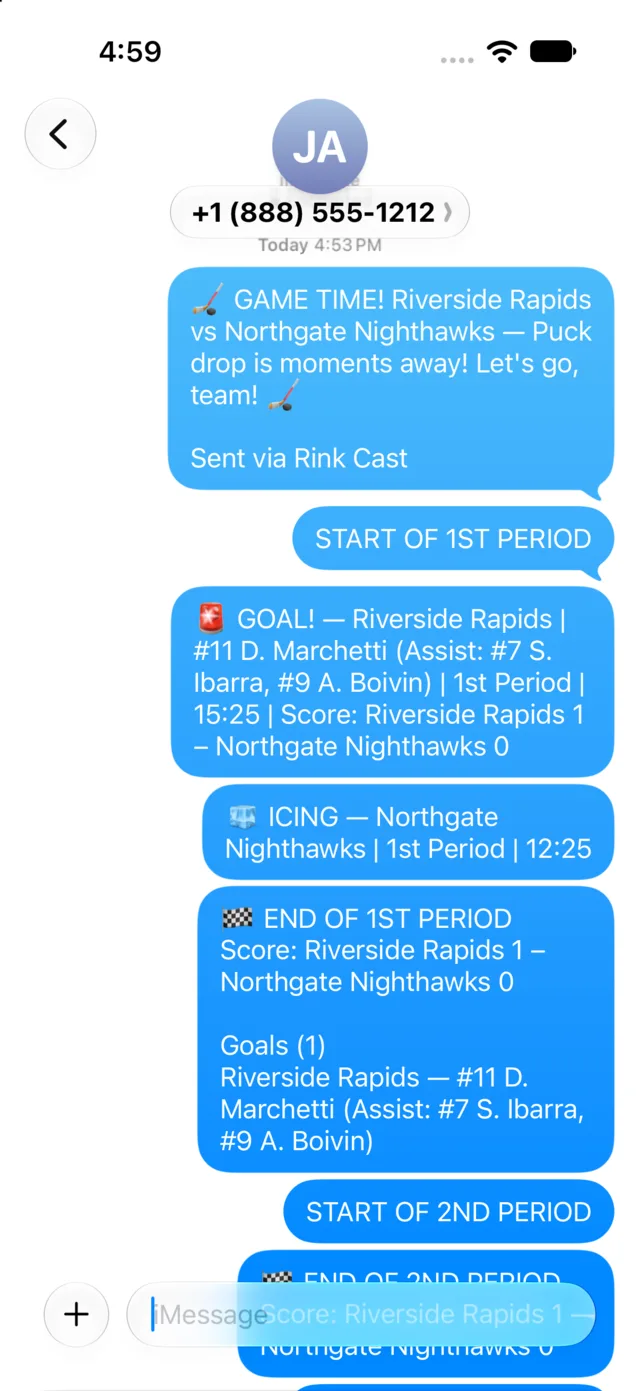
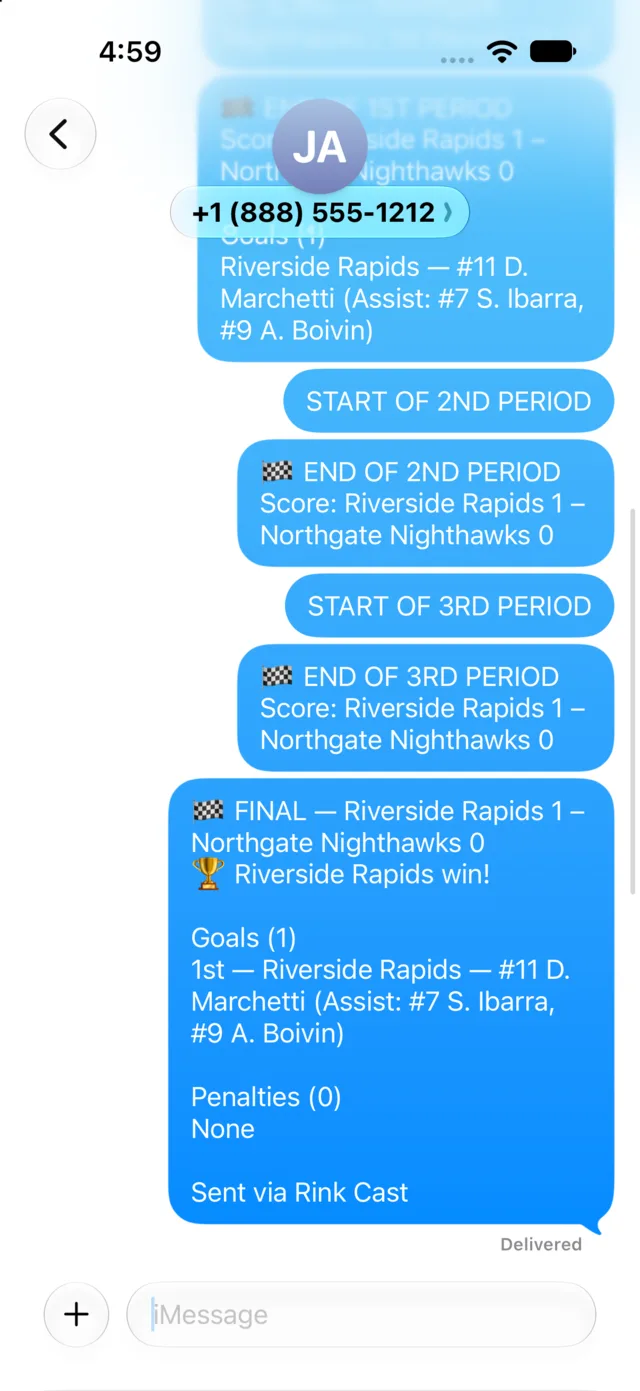
Here's what a full game looks like once it's landed in a group chat — the pre-game announcement, a goal, a penalty, an icing call, each period ending, and the final recap.
Messages carry their own period and game-clock time, so even if a few arrive in a burst after a spell with no signal (see Using it at the rink), the story still reads in the right order.
The iPhone screenshots use Messages since it's always available for a screenshot — in practice it works exactly the same in WhatsApp, or whatever you actually send to (see Where announcements get sent).
11Resuming an interrupted game
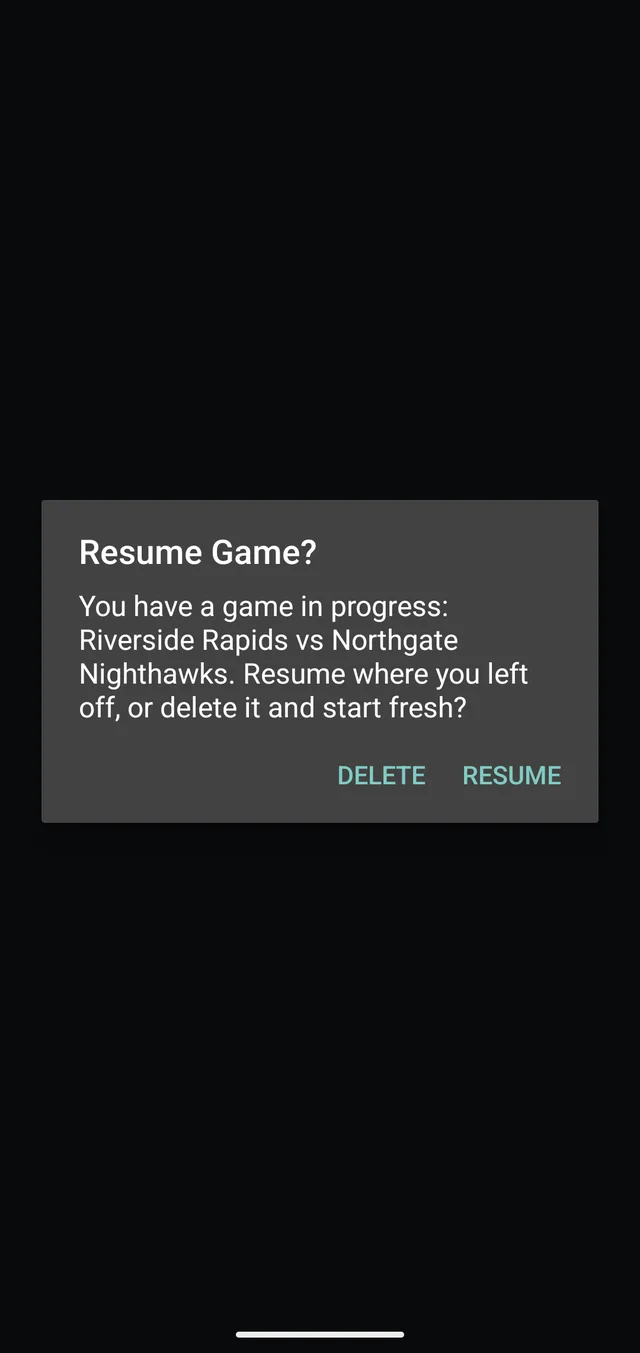
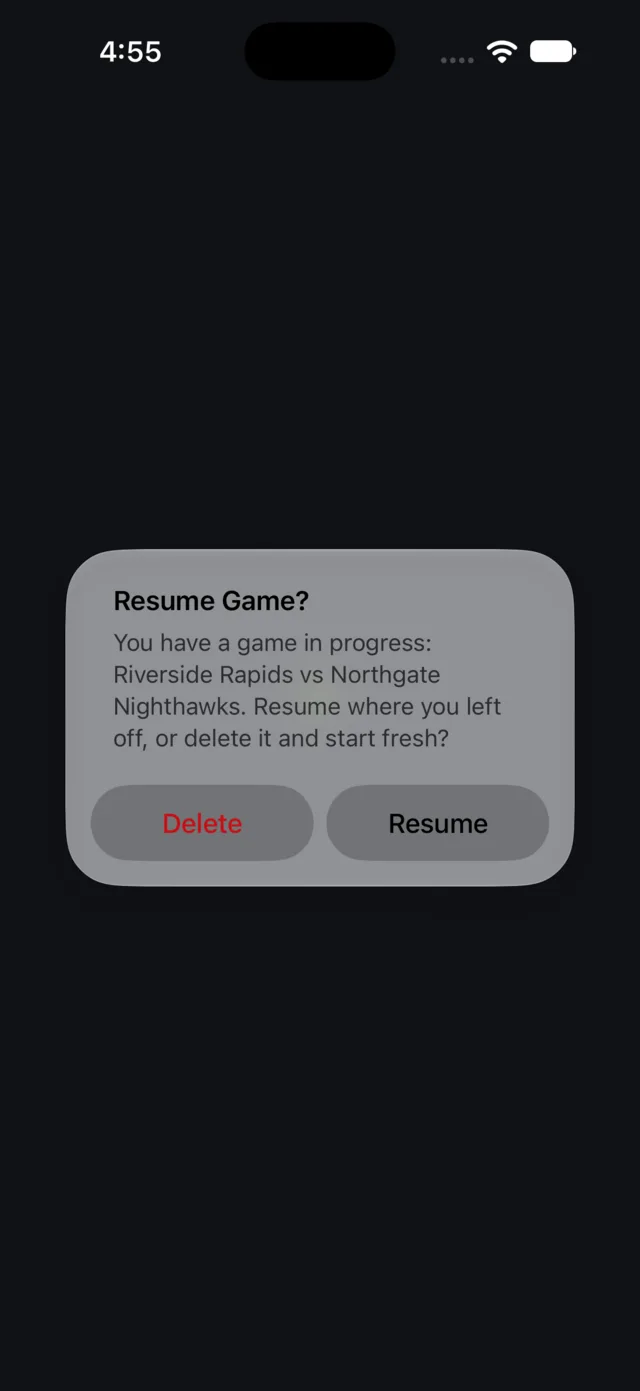
A call, a dead battery, or an accidental swipe won't cost you the game. The next time Rink Cast opens with a game still in progress, it asks:
Resume — picks back up exactly where you left off: score, period, clock, and every goal and penalty so far.
Delete — discards it and starts fresh. This can't be undone, so use Resume unless you're sure.
12Using it at the rink
Landscape works — hold the phone either way; Rink Cast follows.
Rink Cast itself needs no connection once it's been opened online at least once — calling a game, editing the log, all of it works offline.
Sending still needs your chat app to have a connection eventually. With no signal, an announcement is handed off and queues in your chat app rather than failing — it sends as soon as the phone reconnects. Followers may get a burst of messages at once rather than live updates, but nothing is lost, and every message already has its period and time on it so the order still makes sense.
Starting a trial, subscribing, or restoring a purchase on a new phone does need a connection — those go through the Play Store or App Store.
13Troubleshooting & FAQ
- Download to Device didn't seem to do anything. (Android)
- This usually means Rink Cast lost permission to write to the folder you'd previously chosen — often after moving files around, or on a fresh install. Try again and pick the destination folder once more when prompted; that re-grants access. Export Selected (the share option) is a reliable fallback if the problem persists.
- Download to Device didn't seem to do anything. (iPhone)
- Check the Files app in the location you picked — On My iPhone or iCloud Drive — the file's usually there even if nothing visibly happened on screen. If iCloud Drive was the target and you're offline, the file may not finish syncing until you're back online. Export Selected (the share option) is a reliable fallback if it's still not showing up.
- A team shows "⚠ no roster."
- That team has no players yet. Open it from Manage Teams and add at least one before using it in a game — the app doesn't require full rosters, so this is just a heads-up, not a hard block.
- A penalty is still in the penalty box but it's over.
- Tap DONE on its row, set the time, and tap SEND. Rink Cast can't end a penalty by itself because it has no clock of its own. The row turns amber and says "due now" once the clock you've set passes its expected end.
- I ended a penalty by mistake.
- Open EDIT LOG and tap UNDO END beside it. It goes back in the penalty box. (A message you already sent can't be unsent, so a quick correction in the chat is the fastest fix for anyone reading along.)
- The strength looks wrong.
- The strength comes from the penalties still in the box, so check the box first: end any that are over with DONE, and delete any logged by mistake in the Edit Log. Misconducts (10:00 MISC.) don't count as a skater down. In YOUTH rules no strength is shown at all.
- Why did a goal end a penalty?
- It didn't, unless you said so. After a power-play goal Rink Cast asks whether it ended a minor; tap KEEP if it didn't, or UNDO END in the Edit Log if you tapped END IT by mistake.
- Our league has 1-minute penalties and no power plays.
- Choose YOUTH under Game rules when you set up the game. Penalties are always 1 minute and there's no strength or power-play tagging.
- I started the game with the wrong rules or the wrong period length.
- Tap the chip under the period buttons (for example Standard · 2nd period: 10 min · CHANGE), change the rules or the length, and tap SAVE. Penalties already in the box keep the length they had.
- I don't have the other team's roster. Can I still log their goalie?
- Partly. Without a roster there's no one to pick, so START isn't available for that team. CHANGE, PULLED and BACK IN all still work and send a message without a name, and goals scored while their net is empty are tagged EMPTY NET.
- I set the wrong goalie.
- Open EDIT LOG, swipe the goalie entry to delete it, then log it again with the right goalie. The chip under the score updates right away. A message you already sent can't be unsent, so a quick correction in the chat is the fastest fix for anyone reading along.
- Do I have to track goalies?
- No. It's entirely optional, and a game with no goalie events looks and works exactly as it always has.
- How do I get help with my subscription?
- Open Settings and tap your Support ID to copy it, then include it when you contact support. It identifies your subscription without needing your name, email, or any account.
- I switched phones — how do I get my subscription back?
- Install Rink Cast and tap Restore Purchases on the subscription screen. This needs a connection, and works from the same account you subscribed with — your Google account on Android, or the Apple ID signed into the App Store on iPhone.
- Can I move my teams to a new phone?
- Yes — export them on the old phone, transfer the file however you like (email, cloud storage, a cable), and import it on the new one. See Exporting, importing and backing up.